How to Add a Headless CMS to a Lovable, Bolt, or v0 App
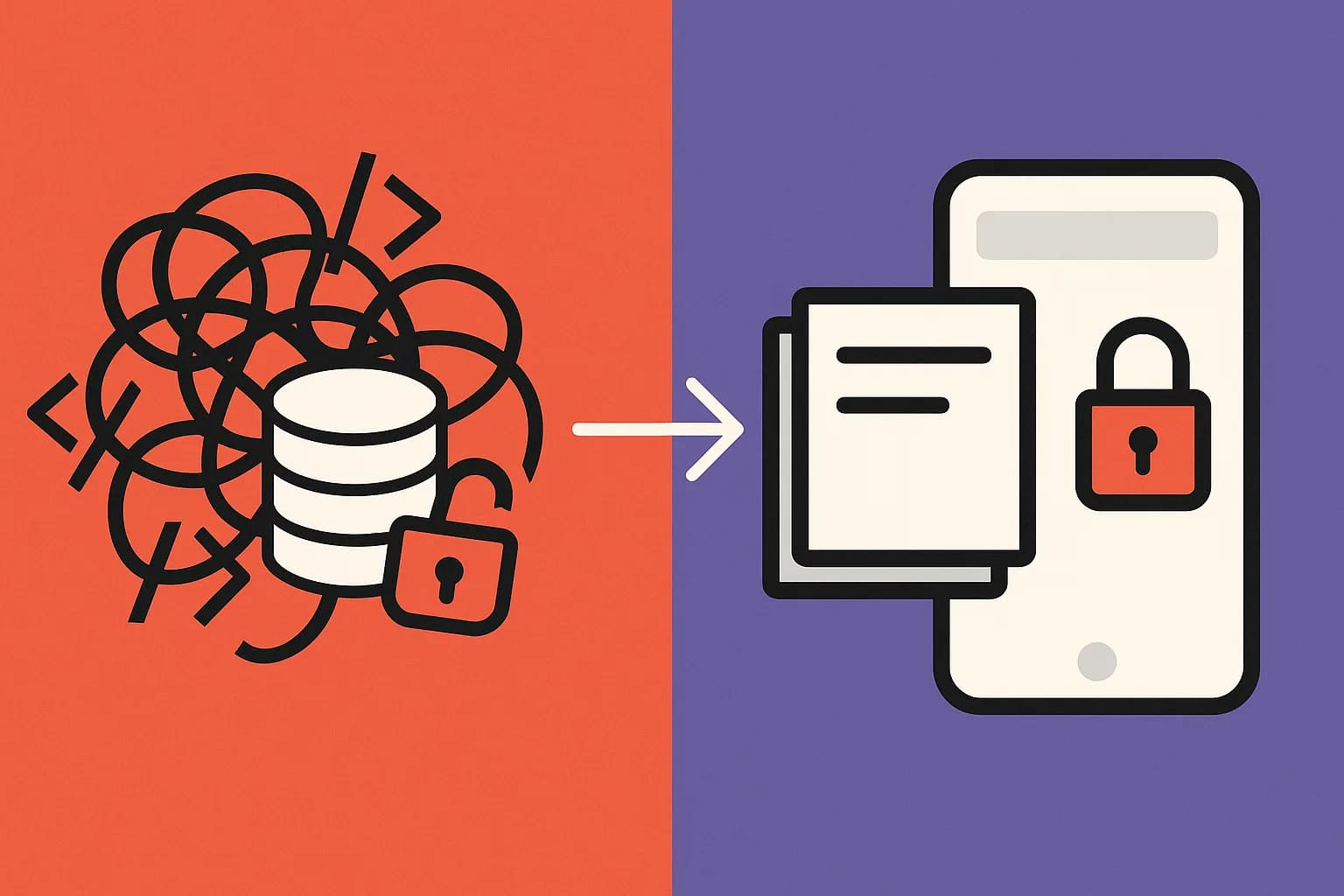
Add a headless CMS to a Lovable, Bolt.new, or v0 app in an afternoon. No rewrite. Just a content type, a read-only key, and one fetch call.
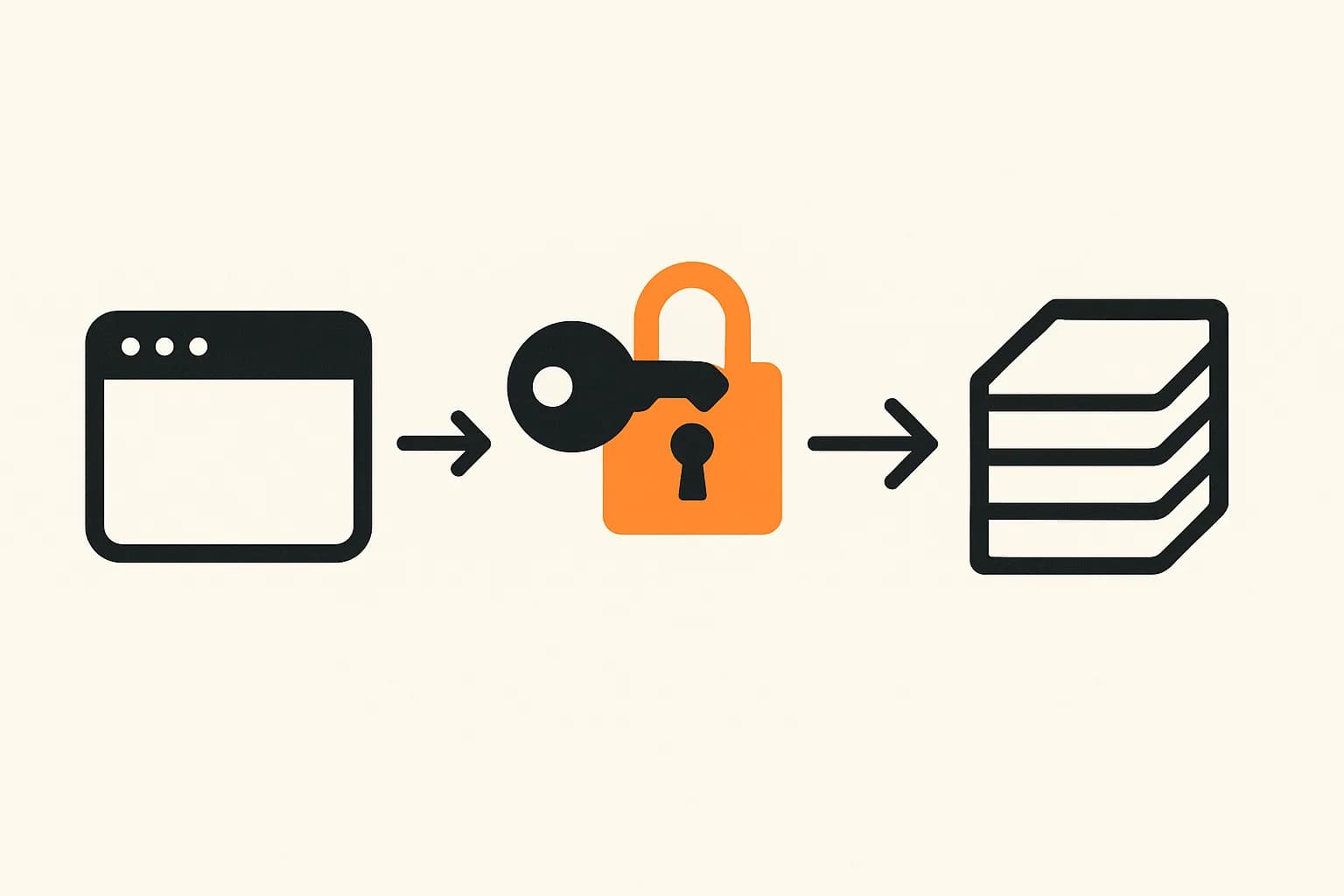
A read-only Draftbase delivery key is safe to expose in the browser, which means adding a CMS to a Lovable, Bolt.new, or v0 app needs no backend of its own: one content type, one public-prefixed env variable, and one fetch call replacing the hardcoded text.
Adding a CMS to a Lovable, Bolt.new, or v0 app takes about an afternoon. It doesn't touch your existing auth, database, or routing. You define the content fields you actually need. You get a read-only API key. Then you swap the hardcoded text for a fetch call. This guide walks through the exact steps, plus the one setting each of these three tools handles differently.
Why the setup differs by tool
Lovable ships every project wired to Supabase. It splits config into two places. Secrets hold anything an Edge Function needs, and never reach the browser. .env variables prefixed VITE_ hold anything the frontend reads directly (Lovable's own docs). Bolt.new and v0 both generate Next.js apps. The same split exists there under a different prefix. NEXT_PUBLIC_ marks anything the browser needs. No prefix means the value stays server-only.
A Draftbase delivery API key is read-only by design. It can only fetch published content. It can never write to your database or touch user data. That makes it safe to expose in the browser. It goes in the public-prefixed variable in every one of these tools, not the private one. That fact removes most of the setup friction. No serverless function is needed. No proxy route is needed. No secret rotation plan is needed either.
Create the content type
Before writing any code, define what the content actually is. Open Draftbase and create a content type for the section you're replacing. A landingPage type might need a headline, a subheadline, and a ctaLabel field. A post type might need only title and body. Keep the field count small. A landing page section rarely needs more than four or five fields. Every extra field is one more thing to fill in before the page renders correctly.
Add one entry with real content
Create a single entry using that content type. Fill it with the actual copy currently sitting in your component. This is the entry your fetch call will read. It also gives you something real to test against, instead of guessing what an empty API response looks like.
Get a delivery API key
Generate a delivery-scoped API key from Draftbase's dashboard. This key only reads published entries. Copy it once. It won't be shown again in full.
Set the variable in your tool
In Lovable, open the project's environment file. Add a variable named VITE_DRAFTBASE_KEY with the key as its value. In Bolt.new or v0, add NEXT_PUBLIC_DRAFTBASE_KEY to the project's environment settings instead. The prefix is what makes the value reach the browser bundle. Without it, the fetch call in your component can't read the key at build time.
Replace the hardcoded text with a fetch call
Point the component at Draftbase's delivery API instead of the literal string. Here's a minimal example, using the content type from the first step:
const res = await fetch(
  `https://api.draftbase.co/delivery/entries?templateId=landingPage&limit=1`,
  { headers: { Authorization: `Bearer ${process.env.NEXT_PUBLIC_DRAFTBASE_KEY}` } }
);
const { entries } = await res.json();
const { headline, subheadline, ctaLabel } = entries[0].fields;
Everything else about the component stays the same. The JSX still renders headline and ctaLabel exactly where the hardcoded strings used to sit. Only the source of those values changed.
Ask the AI tool to do the wiring for you
Once the content type and the key exist, the prompt gets specific instead of vague. Try this: "replace the hardcoded headline with a fetch call to this API, using this response shape." That's a small, checkable change. It isn't a rewrite. These tools handle prompts like this well, because the scope is narrow and the expected output is exact.
Confirm it actually works
Change the entry's content in Draftbase. Refresh the page. Confirm the new text shows up, without a redeploy of the app itself. One catch applies to statically generated pages. A rebuild is still needed to pick up new content. Check whether your hosting does that automatically or on a schedule.
What happens when you re-prompt the app later
A real worry with AI builders is regression. You ask for an unrelated change, and the tool rewrites a file it didn't need to touch. The fetch call you added could get reverted along with it.
Two things lower that risk. First, the change is small and self-contained. A single fetch call inside one component is easy to spot in a diff. A change spread across ten files is not. Second, commit the change to version control right after it works. That's the same practice every vibe-coding guide already recommends for any AI-generated code. If a later prompt strips the fetch call back out, the diff shows exactly what changed. Reverting is one command, not a rebuild from memory.
This is also a good reason to keep the content type small at first. A four-field landing page section is a five-minute fix to re-apply. A future prompt clobbering it is a small setback, not a lost afternoon. A fifty-field content model spread across a dozen components is a much longer afternoon.
What doesn't move
Only the content moves behind an API call. Authentication stays put. The app's own database tables stay put. Business logic stays put, along with every other piece of the Supabase project. Nothing about this setup asks you to migrate users or orders anywhere. It's a narrow, additive change. That's also why it fits in an afternoon instead of a sprint.
When this setup is overkill
A prototype only you will ever touch doesn't need any of this. If the app's entire lifespan is a demo, hardcoded text is faster. There's no future editor to build for. Add the content layer once a second person needs to change what the app says. Or add it once a version of yourself, six months from now, needs to make that same change. No re-opening the AI tool required.
What if the app already has real users?
The steps above don't change once an app has left prototype territory. The content type, the key, and the fetch call all work the same way. That's true whether ten people use the app or ten thousand. What changes is the order you'd want to do this in. Move the highest-traffic, most-often-edited text first. That's usually the homepage headline and the pricing copy. A stale word there costs the most. Leave lower-traffic pages hardcoded until they actually need an edit. There's no rule that says every string in the app has to move to the CMS at once. A partial migration is fine. Doing it section by section, as the need shows up, is a normal way to run this.
One thing is worth checking before touching a live app. Confirm the delivery API's rate limits and caching behavior fit your traffic. Draftbase's delivery responses are cached and rate-limited per org. That covers most small-to-mid traffic sites without extra work. Still, it's worth knowing that ceiling exists before assuming every page load hits the API fresh.
The part most guides skip: static vs. dynamic rendering
Whether "refresh the page and see the new content" actually works depends on how the page is built. This is the detail that trips people up. A standard client-side fetch runs on every page load. That's the kind a Lovable or Bolt.new app uses by default. New content shows up immediately. A statically generated Next.js page is different. Its fetch only runs during the build. A content change needs a new build to appear. That build can come from a webhook, a scheduled job, or a manual redeploy.
Neither approach is wrong on its own. The right choice depends on how often the content actually changes. A pricing page that changes twice a year is a fine candidate for static generation with a webhook-triggered rebuild. A blog that publishes daily reads better with a fetch that runs on every request. Pick the pattern that matches your update frequency. That's what decides whether this setup feels instant or laggy once it's live.
Draftbase supports both patterns directly. Fetch on every request for content that changes often. Or fetch at build time, plus a webhook-triggered rebuild, for content that doesn't. See how to use a headless CMS with React for the render-mode tradeoffs in more depth. Or start directly from Draftbase's pricing page. The free tier covers exactly the project size this guide describes.
Ship content that's built to be found
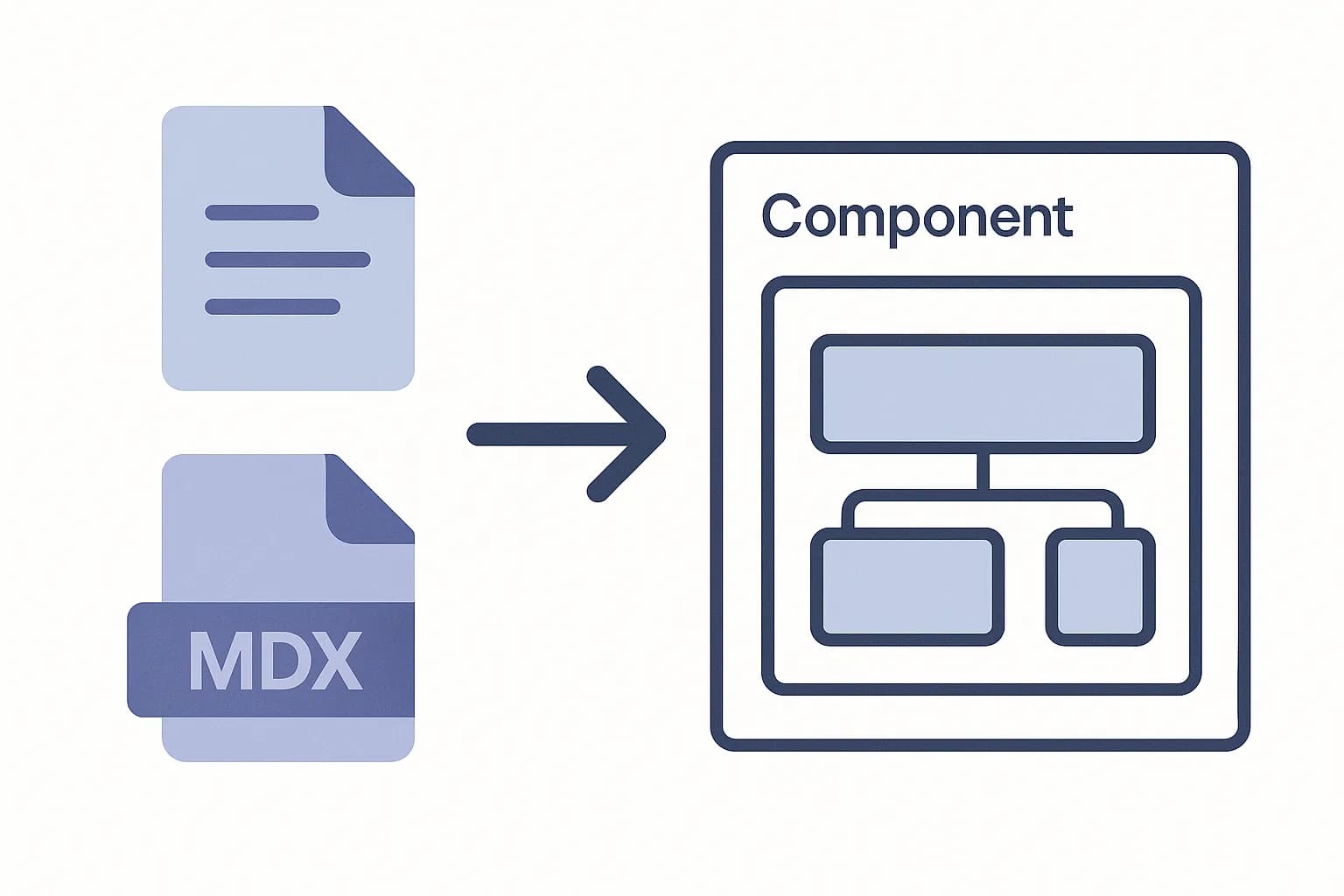
Draftbase generates schema, structured data, and a fast MDX editor for every post.
How to
- 1Create the content type
In Draftbase, define a content type for the section you're replacing (e.g. a landingPage type with headline, subheadline, and ctaLabel fields). Keep it to four or five fields.
- 2Add one entry with real content
Create a single entry using that content type, filled with the actual copy currently hardcoded in the component.
- 3Get a delivery API key
Generate a delivery-scoped, read-only API key from Draftbase's dashboard.
- 4Set the variable in your tool
In Lovable, add VITE_DRAFTBASE_KEY to the project's environment file. In Bolt.new or v0, add NEXT_PUBLIC_DRAFTBASE_KEY to the project's environment settings instead.
- 5Replace the hardcoded text with a fetch call
Point the component at Draftbase's delivery API (GET /delivery/entries) using the public env variable as the bearer token, and render the returned fields where the hardcoded strings used to sit.
- 6Ask the AI tool to do the wiring
Prompt the AI builder with the specific change: replace the hardcoded text in a given section with a fetch call to the delivery API, using the known response shape.
- 7Confirm it works
Edit the entry's content in Draftbase and refresh the page. For statically generated pages, trigger a rebuild to pick up the change.
Frequently asked questions
How long does it take to add a CMS to a vibe-coded app?
Usually an afternoon for a small app. Define the content fields, get a read-only API key, and swap hardcoded text for one fetch call.
Is a Draftbase delivery API key safe to expose in the browser?
Yes. It's read-only and can only fetch published content. It goes in a public-prefixed variable like VITE_ or NEXT_PUBLIC_, not a private secret.
Do I need a backend or serverless function to add a CMS to Lovable or Bolt.new?
No. A read-only delivery key can be called directly from the client. No proxy route or Edge Function is required.
What happens if a later AI prompt overwrites my fetch call?
Commit the change to version control right after it works. If a later prompt strips it out, the diff shows exactly what changed, and reverting takes one command.
Does adding a CMS this way affect my app's Supabase database or auth?
No. Only the content that used to be hardcoded moves behind an API call. Auth, user data, and the rest of the app's database stay exactly where they are.
Samer is a software engineer and entrepreneur, founder of Draftbase and Ezi Home Services, building technology that simplifies home services. Passionate about software, APIs, automation, and creating products that solve real-world problems.